
Adityeah

Build an MCP-powered Audio Analysis Toolkit

How to build an MCP-Powered Audio Analysis toolkit with Assesmbly-AI?

In an era of voice-driven interfaces and AI-powered assistants, extracting meaningful insights from audio is more important than ever. Whether you’re a developer, product builder, or AI tinkerer, this guide will show you how to build a full-fledged Audio Analysis Toolkit that can:

  • Transcribe audio with speaker labels and timestamps

  • Summarize long conversations

  • Detect sentiment and emotional tone

  • Extract key topics

  • Enable natural-language Q&A on audio content

The best part? You can use it either as:

  1. A beautiful web UI powered by Streamlit, OR

  2. A backend MCP server connected to Claude via Cursor for agentic interaction.

Let’s dive into both modes of using the toolkit.

Tech Stack Overview

  • AssemblyAI – API for audio transcription and advanced analysis (sentiment, topics, summarization)

  • Streamlit – Rapid frontend for building interactive UI

  • Cursor MCP (Model Context Protocol) – Interface for agents like Claude to call backend functions

  • Claude (via Cursor) – Agent that can consume your toolkit through natural language

  • Python 3.12+


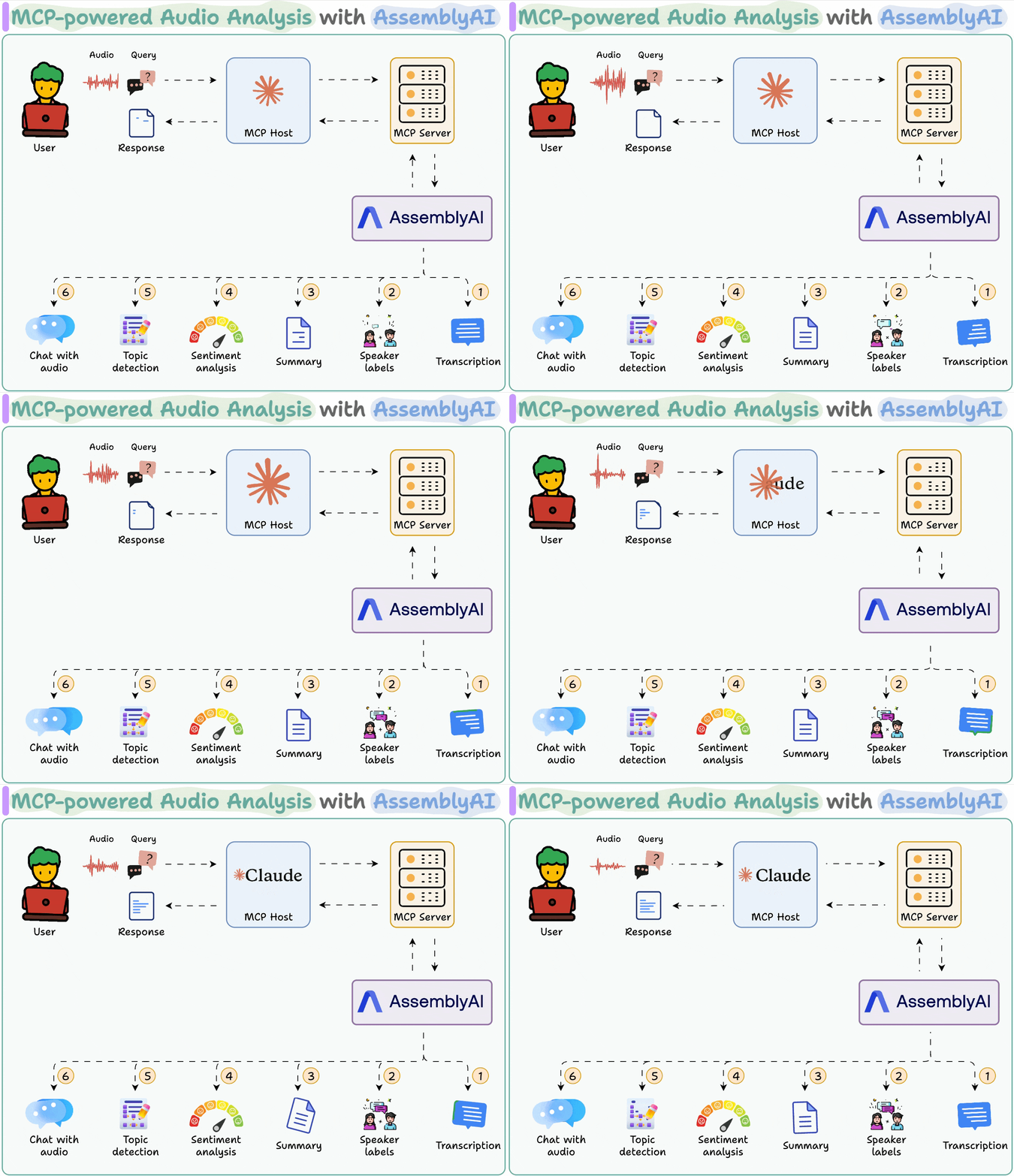
Here’s our workflow:

Audio Analysis Toolkit
  • User’s audio input is sent to AssemblyAI via a local MCP server.
  • AssemblyAI​ transcribes it while providing the summary, speaker labels, sentiment, and topics.
  • Post-transcription, the user can also chat with audio.

Dual Tool Structure: Transcription + Audio Analysis (via MCP)

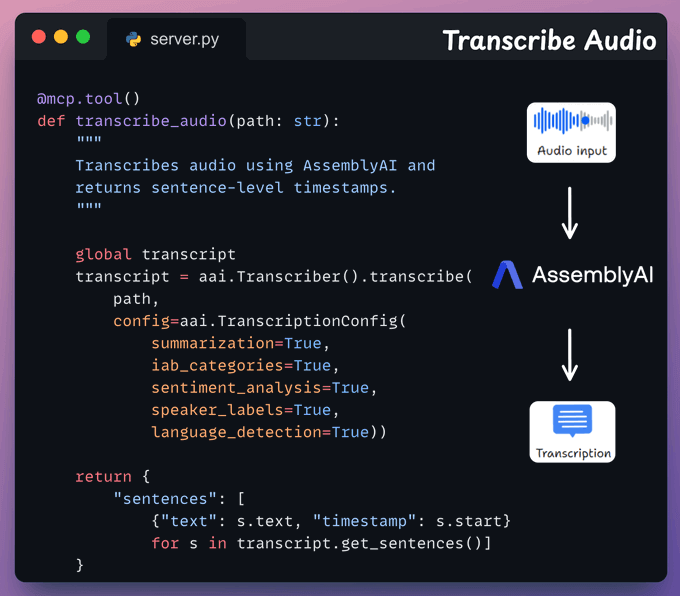
Transcription MCP tool

This tool accepts an audio input from the user and transcribes it using AssemblyAI.

We also store the full transcript to use in the next tool.

Transcription Audio

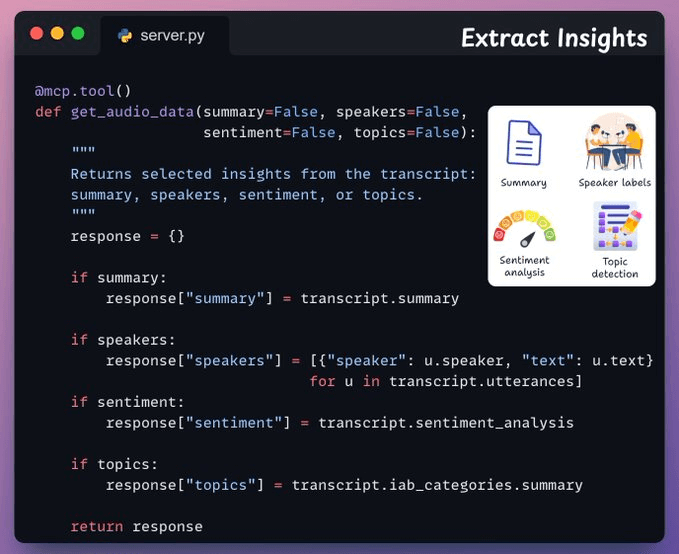
Audio analysis tool

Next, we have a tool that returns specific insights from the transcript, like speaker labels, sentiment, topics, and summary.

Based on the user’s input query, the corresponding flags will be automatically set to True when the Agent will prepare the tool call via MCP:


Audio analysis tool

Bonus: It’s RAG-Ready

Once transcribed, the transcript can even be indexed into a vector database or used in an LLM context window for true RAG-style audio Q&A, especially useful for:

  • Meeting assistants

  • Interview breakdowns

  • Legal depositions

  • Customer call analysis

Let’s implement this!

Option 1: Use as a Streamlit Web App 

This mode is perfect if you want a user-friendly, visually rich interface for uploading and analyzing audio files.

This web-based interface is powered by Streamlit and comes with:

  • Audio file upload: .mp3, .wav, .mp4, etc.

  • Full transcript with timestamps

  • Speaker-wise breakdown

  • Sentiment visualized with emojis and colors

  • AI-generated summaries

  • Top topics and relevance

  • Ask questions about the audio in a chatbot-style interface

How to Run It? 

1. Clone the repo and set up the environment.

				
					git clone https://github.com/edityeah/ai-hub.git
cd audio-analysis-toolkit
python -m venv .venv
source .venv/bin/activate    # Or .venv\Scripts\activate on Windows
pip install -r requirements.txt


2. Add your AssemblyAI API Key

Create a .env file:

				
					ASSEMBLYAI_API_KEY=your_key_here


Run the app

				
					streamlit run app.py


Option 2: Use as a Cursor MCP Server (for Claude Agents)

If you prefer working agentically — that is, using an AI like Claude to invoke capabilities — you can run this toolkit as an MCP server.

What is MCP?

MCP (Model Context Protocol) is how tools can plug into Cursor and be used by agents like Claude. It allows your local Python scripts to respond to natural language instructions inside the Cursor IDE.

Setting It Up:

  1. Ensure server.py is in your project directory (this script exposes transcription logic via HTTP or CLI).

  2. Configure Cursor MCP:
    In Cursor → Preferences → MCP Servers → Global, add:

				
					{
  "mcpServers": {
    "assemblyai": {
      "command": "python",
      "args": ["server.py"],
      "env": {
        "ASSEMBLYAI_API_KEY": "your_key_here"
      }
    }
  }
}


3. Open the project folder in Cursor
Cursor will automatically launch the MCP server if the config and working directory are correct.

4. Call it from Claude:
Inside Cursor, invoke the tool like this:

				
					@assemblyai: transcribe "path/to/audio.mp3"


Claude will now interact with your audio analysis server in real-time and return intelligent answers.

Which One Should You Use?

Use CaseStreamlit UIMCP + Claude
Non-technical users✅ Best option
Developer workflows
Chat-driven automation⚠️ Basic✅ Powerful
Visual dashboards✅ Beautiful
IDE integration✅ Native (Cursor)

Final Thoughts

With just a few lines of Python and AssemblyAI’s APIs, you can build a full-featured audio intelligence system. Whether you want to offer this as a product, internal tool, or agentic function inside your AI IDE, this toolkit gives you the flexibility to do both.

💡 Ready to build? Try both modes and see what fits your workflow best!

Also read

About the Author

Leave a Reply

Your email address will not be published. Required fields are marked *